How to Add a Signature Field to Native Framer Forms (Mouse, Finger or Pen)
Let visitors sign your native Framer form with a mouse, a finger or a pen and send the signature as a trimmed PNG — or, with FramerSend, as a private link to the image file.

Dong Trinh
Lead Architect at FramerSend
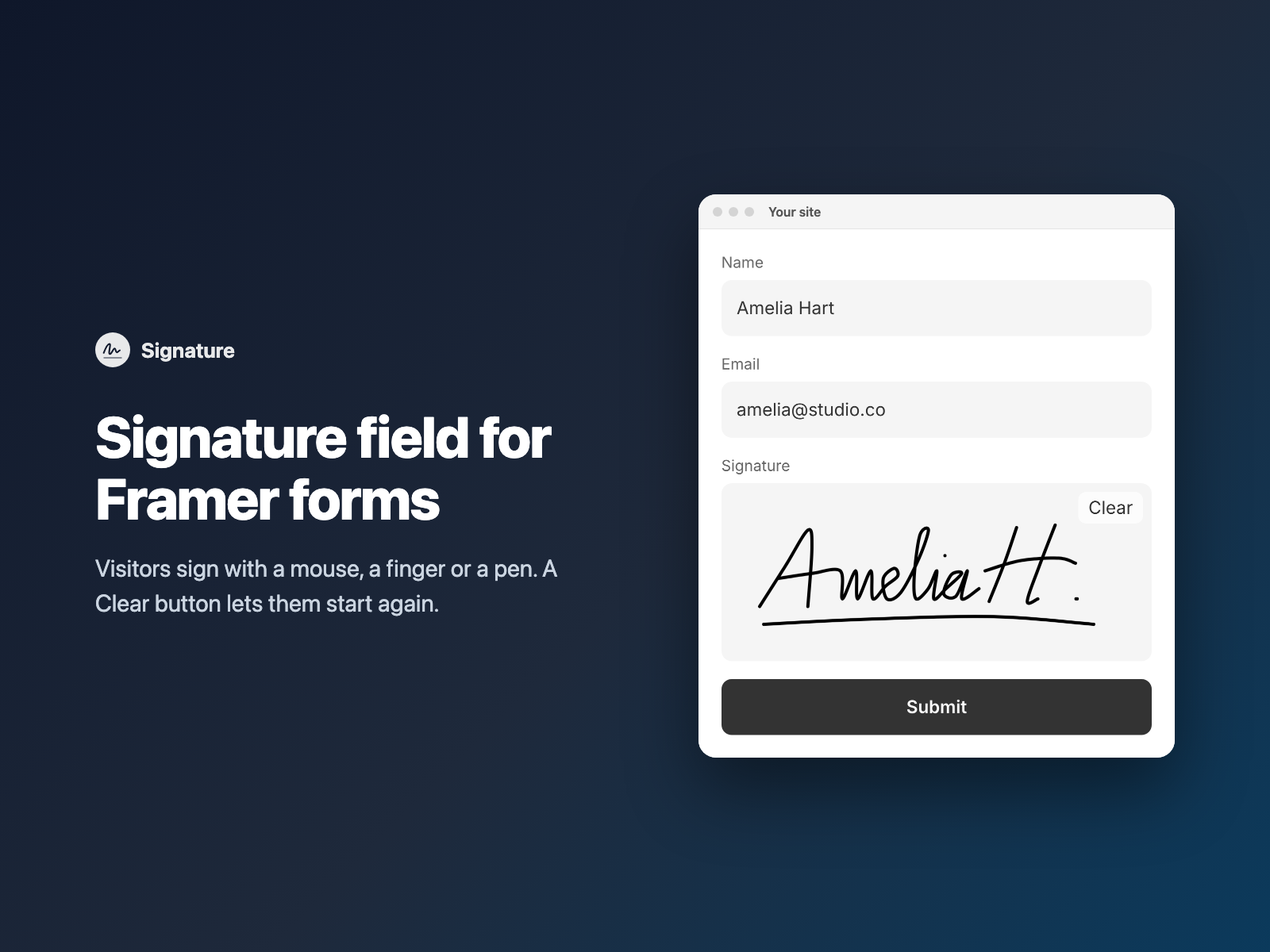
Client agreements, project approvals, waivers, intake forms and damage claims all end with the same request: please sign here. Native Framer forms have no signature field, so the signature usually happens somewhere else — a printed PDF, a scan, or an email afterwards.
Signature adds a draw-to-sign field to your native Framer form. Visitors sign with a mouse, a finger or a pen, and the signature is sent with the rest of the answers.
Why collecting signatures outside your form slows things down
Moving the signature out of the form creates extra work on both sides:
- Extra steps for the visitor. Printing, signing and scanning a page is slow, and on a phone it often means switching apps or devices.
- Matching by hand. When the signed page arrives separately, someone has to attach it to the right submission.
- Awkward file handling. Scans and photos of paper are large, and each one has to be saved and linked somewhere.
Print, sign and scan vs a Signature field
| Print, sign and scan, or email the signature later | Signature inside a native Framer form |
|---|---|
| The signed page arrives separately and has to be matched to the submission. | The signature is sent with the other answers, under the field name you choose. |
| Visitors leave your site or need a printer and a scanner. | Visitors sign in the form with a mouse, a finger or a pen; a Clear button lets them start again. |
| Large scans or photos of paper to store. | A PNG trimmed to the ink, at most 600px wide; with FramerSend, a private link to the PNG file. |
Signature captures a drawn image of the signature. To keep a record of what the visitor agreed to, add Consent Checkbox, which sends the exact consent text and the date and time it was ticked.
How Signature captures and sends the image
Signature is a code component written into your Framer project:
- Draw with any pointer — mouse, finger or pen, drawn as smooth curves. Drawing on a phone does not scroll the page, and the pad redraws the signature when the layout changes or the phone rotates.
- Export after each stroke — when the visitor finishes a stroke, the signature is saved as a PNG trimmed to the ink. Small signatures are drawn sharper, and large ones are scaled down to at most 600px wide and about 60 KB as a data URL.
- Clear and reset — a Clear button appears once there is ink, the pad is cleared when the form is reset, and Enter on the Clear button never sends the form.
- Required — when turned on, the form will not submit until the visitor signs, and your own error text appears (default "Please sign here").
- What arrives — a
data:image/png;base64,...value under your field name (Signatureby default). With FramerSend, the signature is saved as a PNG file and your connected tools receive a private link to the image instead of the long text.
With other destinations the image arrives as text, so use one that accepts long values, such as a webhook; Google Sheets cells, for example, may cut long text. The field loads no external scripts and makes no network requests on your site.
Add a signature field in three steps
- Select your native Form on the Framer canvas, open Signature (or pick it inside FramerSend Fields), and sign in with your FramerSend account.
- Click Insert signature field. It is added above the submit button at full width.
- In the right panel, set the field name, pen color and width, minimum height, placeholder text and Clear label, turn on Required if needed, and publish.
Combine Signature with Consent Checkbox, Terms Box and Multi-Step Form
- Agreements and waivers: show your terms in a scrollable Terms Box with an "I have read and agree" checkbox, then the Signature field, then Consent Checkbox for a record of the consent text and time.
- Sign on the last step: in a Multi-Step Form, place the signature on the final step after the details, with Name Fields for the signer's first and last name.
- Claims and inspections: add Camera Capture for photos and Reference Number for a claim ID.
With FramerSend, the signature link lands in HubSpot, Airtable, Notion or Klaviyo next to the rest of the submission.
What we tested
On a published native Framer form (together with Multi-Step Form) we drew a signature: the Clear button appeared and the form's hidden Signature input held a PNG data URL of about 6 KB. Submitted through FramerSend to Klaviyo, the stored Signature value was a link to a 4.7 KB PNG of the signature, trimmed to the ink. A later real Framer test confirmed that Enter on the Clear button clears the pad without sending the form.
Install Signature from the Framer Marketplace or use it inside FramerSend Fields along with all 78 Framer form fields and 110+ connectors — 14-day free trial with no card, then from $5/month.
Frequently asked questions
How do I add a signature field to a Framer form?
Select your native Framer form, open Signature and click Insert signature field. It is added above the submit button at full width, and visitors sign with a mouse, a finger or a pen.
What does my form receive?
A PNG image of the signature as a data URL, text that starts with data:image/png;base64, under the field name you choose. It is trimmed to the ink and at most 600px wide. With FramerSend, your tools receive a private link to the PNG file instead.
Which form destinations work best?
The image is sent as text, so it suits destinations that accept long values, such as webhooks and FramerSend. Some destinations, for example Google Sheets cells or email notifications, may cut long text or show it as raw text instead of an image.
Can visitors sign on a phone?
Yes. Visitors can sign with a finger or a pen, drawing does not scroll the page, and a Clear button lets them start again.
Can I make the signature required?
Yes. Turn on Required and the form will not submit until the visitor signs, with your own error text (Please sign here by default).
Where do I install Signature for Framer?
Install Signature from the Framer Marketplace, or open FramerSend Fields (78 fields in one plugin) and select it. Every FramerSend plan includes it from $5/month after a 14-day free trial with no card.
Connect Framer to 100+ CRMs in 60 seconds
14-day free trial, no card needed. Copy your Submit URL and paste straight into Framer.
Related Articles
How to Fill a Framer Form Dropdown from a CMS Collection
Build a dropdown, radio list, buttons or checkboxes in a native Framer form from CMS items such as services or locations, and refresh the options when the CMS changes.
How to Validate an IBAN or VAT Number in a Native Framer Form
Check IBAN check digits and EU VAT numbers as visitors type in a native Framer form, block the submit while the value is wrong and send a clean value.
How to Add a QR Code and Barcode Scanner to a Native Framer Form
Let visitors scan a QR code or barcode into a native Framer form field, or scan from a photo, and send the decoded text with the form.