How to Fill a Framer Form Dropdown from a CMS Collection
Build a dropdown, radio list, buttons or checkboxes in a native Framer form from CMS items such as services or locations, and refresh the options when the CMS changes.

Dong Trinh
Lead Architect at FramerSend
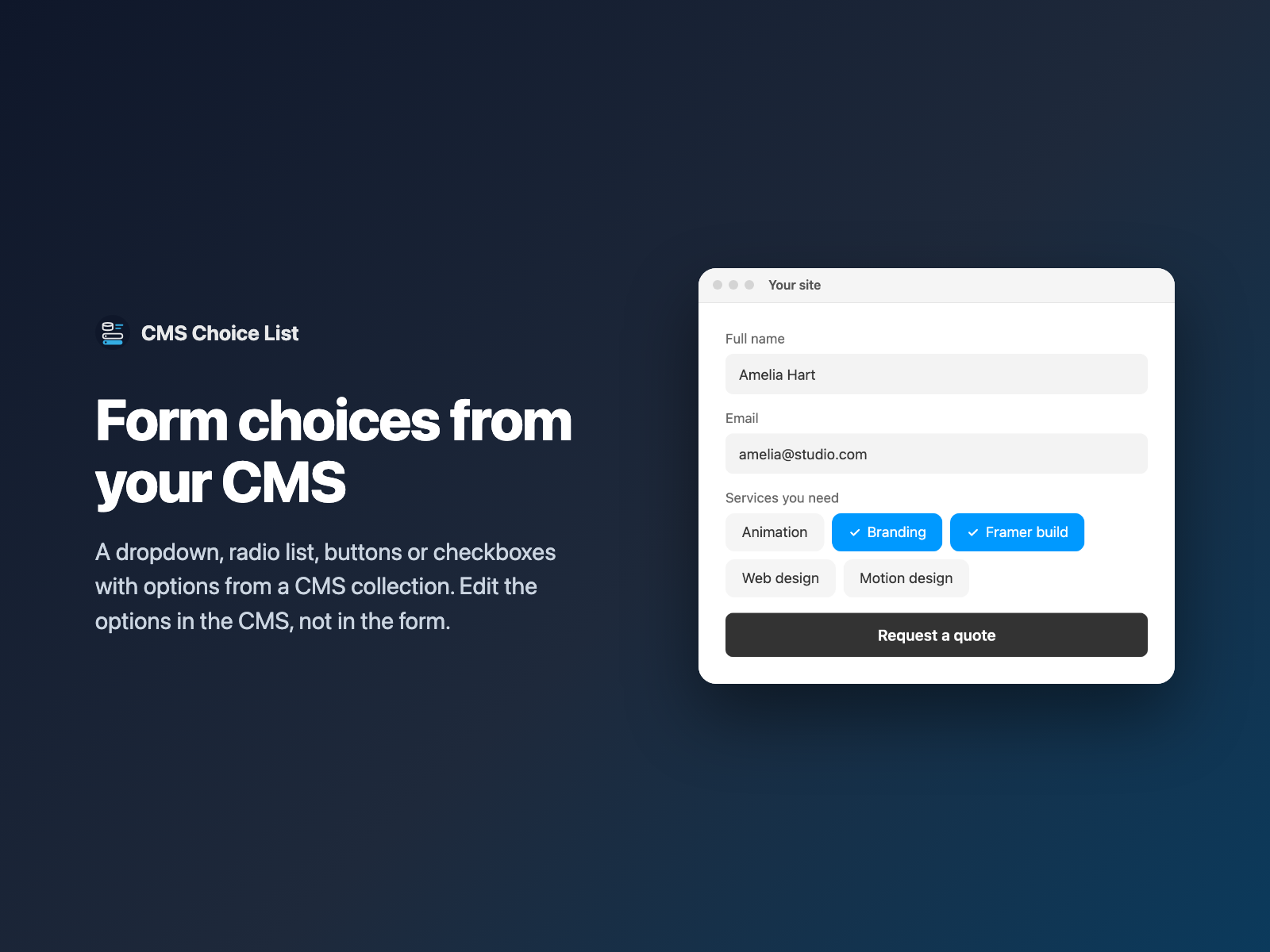
A Framer form usually asks visitors to pick something: a service, a location, a product, an event or a team member. Most sites type those options into the form by hand. Then the CMS changes, and the form is out of date.
CMS Choice List fills a choice field in your native Framer form from a CMS collection. Your team edits the options in the CMS, and the form follows.
Why form options should come from the CMS
If the same list lives in two places, one of them will be wrong. A new service goes on the Services page but not in the contact form. A closed location is still in the dropdown. A visitor picks it, and you answer by email to sort it out.
Reading the list from the CMS fixes three things:
- One source of truth. Add, rename or remove an item in the collection, and you have one place to edit.
- Less form work. Editors do not need to open the form component to change a dropdown.
- Cleaner leads. Each pick matches a real item on your site, so a lead who picked "Web Design" matches your Web Design page.
Typed options vs CMS Choice List
| Options typed into the form | CMS Choice List |
|---|---|
| You update the form by hand each time the list changes. | You edit the collection, click Refresh from CMS and publish. |
| Spelling can differ from the CMS item. | Labels and values come from the CMS item itself. |
| One style per field. | Dropdown, radio list, buttons or checkboxes from the same collection. |
| Every item shows. | Optionally show only items where a toggle such as "Show in form" is on. |
If you only need a CMS value that the visitor does not choose, such as the name of the page they came from, use CMS Hidden Field instead.
How CMS Choice List copies CMS items into a form
The plugin reads the collection in the Framer editor and writes the items into a code component placed in your form:
- Pick any CMS collection in the project, then choose the label field and the value field (any text field or the slug).
- Pick a style: dropdown, radio list, buttons or checkboxes. Several picks are joined with commas.
- Sort and limit: use CMS order or A to Z, and set a maximum number of items.
- Filter: show only items where a toggle field is on. Draft items are always left out.
- Required: turn it on and write your own error text.
The value arrives with the rest of the submission under the field name you choose, for example Services.
Build a dropdown from a CMS collection in three steps
- Select your native Form on the Framer canvas and open CMS Choice List.
- Pick the collection, the label field and a style.
- Click Insert choice field. It is added above the submit button. Style it in Framer's right-hand panel and publish.
CMS Choice List is coming in FramerSend Fields 1.4.0. Until then you can read the field page for the full option list.
Update the options after the CMS changes
Framer code components cannot read the CMS on the live site. That is why the plugin copies the items in when you insert the field. After a CMS change:
- Select the field and click Refresh from CMS. Use Refresh all from CMS if you have several fields.
- Publish your site again.
Put this step on your checklist for CMS edits. Visitors will see the old list until you republish.
What we tested
We tested on a real Framer project with a collection called "Services". It had 3 items when we inserted the field. We added a fourth item in the CMS, clicked Refresh from CMS and the dropdown showed 4 options. Picking Web Design sent Services=Web Design with the form.
The automated checks passed too: 60 of 60 harness checks and 44 of 44 plugin-panel checks.
Try CMS Choice List in FramerSend Fields 1.4.0. Every FramerSend plan includes it, from $5/month after a 14-day free trial with no card. For other ways to personalize a form, read conditional logic in Framer forms.
Frequently asked questions
How do I make a Framer form dropdown from a CMS collection?
Select your native Framer form, open CMS Choice List, pick the collection, choose the label field and a style, then click Insert choice field. The plugin copies the CMS items into the field as options.
Do CMS changes show up in the form by themselves?
No. Framer code components cannot read the CMS on the live site, so the plugin copies the items into the field. After you change the collection, select the field, click Refresh from CMS and publish your site again.
Which styles can the choice list use?
Dropdown, radio list, buttons or checkboxes. Checkboxes let visitors pick several items, and the form receives them joined by commas.
What does the form send?
The value under the field name you choose. In our real-collection test, the form sent Services=Web Design. You can use the label, the slug or another text field as the value.
Can I hide some CMS items from the form?
Yes. Add a toggle field such as Show in form to the collection and pick it as the filter. Draft items are always left out.
Does it cost extra?
No. CMS Choice List is included in every FramerSend plan, from $5/month, after a 14-day free trial with no card. It is coming in FramerSend Fields 1.4.0.
Connect Framer to 100+ CRMs in 60 seconds
14-day free trial, no card needed. Copy your Submit URL and paste straight into Framer.
Related Articles
How to Validate an IBAN or VAT Number in a Native Framer Form
Check IBAN check digits and EU VAT numbers as visitors type in a native Framer form, block the submit while the value is wrong and send a clean value.
How to Add a QR Code and Barcode Scanner to a Native Framer Form
Let visitors scan a QR code or barcode into a native Framer form field, or scan from a photo, and send the decoded text with the form.
How to A/B Test a Form in Framer and See Which Variant Won
Run an A/B split test on a native Framer form by tagging layers [A] and [B]. Visitors keep their variant, and each submission says which one they saw.