How to Add a Star Rating to Native Framer Forms for Reviews and Feedback
Add clickable 1–10 star ratings with half stars, labels and keyboard support to native Framer review and feedback forms; your form receives the rating as a number.

Dong Trinh
Lead Architect at FramerSend
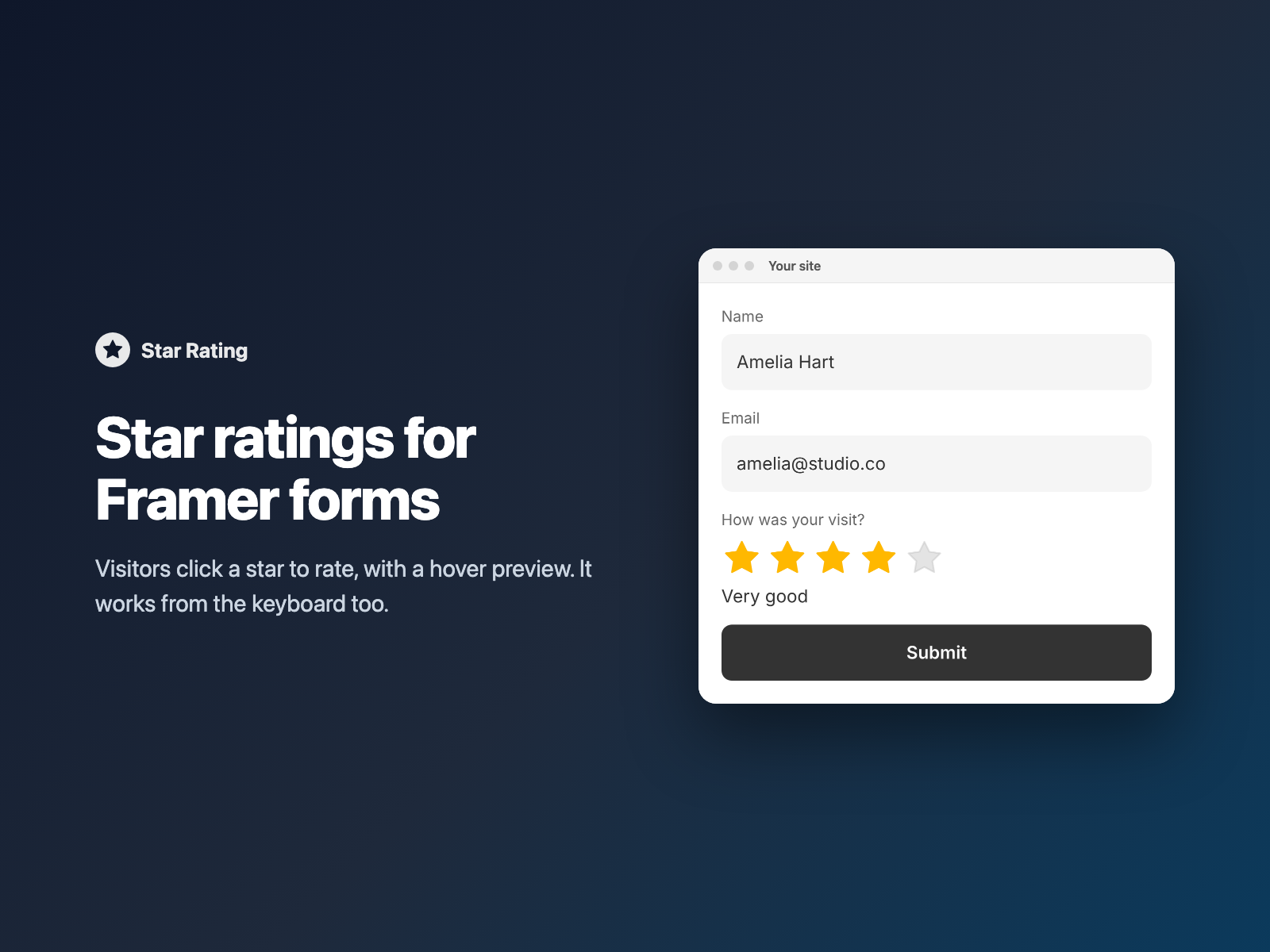
Review requests, post-project feedback, event surveys and support follow-ups all start with one question: how did we do? Native Framer forms only offer text fields, radio buttons and dropdowns, so a quick rating turns into a typed answer or a row of small circles.
Star Rating adds clickable stars to your native Framer form, and your form receives the rating as a number you can sort, filter and average.
Why a star rating beats a free-text feedback box
A rating field gives visitors and your team something easier to work with:
- One tap to answer. Visitors click a star, with a hover preview before they commit, instead of writing a sentence.
- A number, not an opinion to read. The submission contains
4or3.5, ready to sort and average in a spreadsheet or CRM. - Something to act on. Because the rating is a value in the form, you can show follow-up questions or a tailored thank-you based on it.
Radio buttons or a dropdown vs Star Rating
| Radio buttons or a 1 to 5 dropdown | Star Rating inside a native Framer form |
|---|---|
| A row of small circles, or a menu that opens before the visitor can choose. | Clickable stars with a hover preview, from 12 to 96 px in size. |
| Labels such as Good are separate options or text you place yourself. | Optional labels under the stars, such as Poor, Fair, Good, Very good, Excellent, follow the chosen star. |
| Whole steps only. | 1 to 10 stars with optional half stars, sent as 3.5. |
How Star Rating handles clicks, half stars and the keyboard
Star Rating is a code component written into your Framer project:
- Click to rate — visitors click a star, with a hover preview first. With Allow clear on (the default), clicking the current rating again clears it.
- 1 to 10 stars and half stars — choose the number of stars (5 by default) and turn on half stars, where the left half of a star counts as .5.
- Keyboard support — Tab to the stars, then use the arrow keys; Home and End jump to the first and last star, number keys pick a star, and Delete clears. Enter on a star picks it without sending the form early.
- Labels and required — show labels under the stars, and make the rating required with your own error text (default "Please choose a rating").
- What arrives — the rating as a number under your field name (
Ratingby default), for example4, or empty when none was picked. The rating is cleared when the form is reset.
Star size, gap and alignment, filled, empty and focus colors, and the label font and color are set in Framer's right-hand panel. The field loads no external scripts and makes no network requests on your site.
Add a star rating in three steps
- Select your native Form on the Framer canvas, open Star Rating (or pick it inside FramerSend Fields), and sign in with your FramerSend account.
- Click Insert star rating. It is added above the submit button.
- In the right panel, set the field name and the number of stars, turn on half stars, labels or Required if you need them, style the stars, and publish.
Build review and feedback forms with Conditional Fields, Outcome Card and NPS
- Follow-up questions: with Conditional Fields, show a "What could we improve?" textarea only when
Ratingequals1, or a follow-up only once a rating was given. - A tailored thank-you: point Outcome Card at
Ratingwith numeric rules such as1-2and4+, so each range shows its own message and CTA button. - Other rating styles: use NPS Score for a 0 to 10 Net Promoter question, Emoji Rating for faces, or Likert Scale to rate several statements at once.
The rating arrives as a number in Airtable, HubSpot, Google Sheets or your email notification.
What we tested
In real tests on a published Framer site, a star rating inserted into a native form was submitted through FramerSend to Klaviyo with Rating = 3; a second star rating was inserted above the submit button with its own unique field name (Rating 3); and pressing Enter on the first star set Rating to 1 without sending the form early. Star Rating was also inserted from the FramerSend Fields catalogue, which reused the same code file instead of creating a duplicate.
Install Star Rating from the Framer Marketplace or use it inside FramerSend Fields along with all 78 Framer form fields and 110+ connectors — 14-day free trial with no card, then from $5/month.
Frequently asked questions
How do I add a star rating to a Framer form?
Select your native Framer form, open Star Rating and click Insert star rating. It is added above the submit button, and visitors click a star to rate, with a hover preview before they click.
What does my form receive?
The rating as a number, for example 4 (or 3.5 with half stars), under the field name you choose (Rating by default). It is empty when no rating was picked.
Can I use half stars or more than 5 stars?
Yes. You can use 1 to 10 stars and turn on half stars; the left half of a star counts as .5.
Is the star rating keyboard accessible?
Yes. Visitors Tab to the stars and use the arrow keys to rate; Home and End jump to the first and last star, and Delete clears the rating when clearing is allowed.
Can I show words like Poor or Excellent under the stars?
Yes. Turn on Labels and type your own comma-separated list. The default is Poor, Fair, Good, Very good, Excellent.
Where do I install Star Rating for Framer?
Install Star Rating from the Framer Marketplace, or open FramerSend Fields (78 fields in one plugin) and select it. Every FramerSend plan includes it from $5/month after a 14-day free trial with no card.
Connect Framer to 100+ CRMs in 60 seconds
14-day free trial, no card needed. Copy your Submit URL and paste straight into Framer.
Related Articles
How to Fill a Framer Form Dropdown from a CMS Collection
Build a dropdown, radio list, buttons or checkboxes in a native Framer form from CMS items such as services or locations, and refresh the options when the CMS changes.
How to Validate an IBAN or VAT Number in a Native Framer Form
Check IBAN check digits and EU VAT numbers as visitors type in a native Framer form, block the submit while the value is wrong and send a clean value.
How to Add a QR Code and Barcode Scanner to a Native Framer Form
Let visitors scan a QR code or barcode into a native Framer form field, or scan from a photo, and send the decoded text with the form.