How to Add an International Phone Number Field with Country Codes to Native Framer Forms
Let visitors pick from 240+ countries with flags and calling codes, type their number, and send one clean international number like +44 7400 123 456 from your native Framer form.

Dong Trinh
Lead Architect at FramerSend
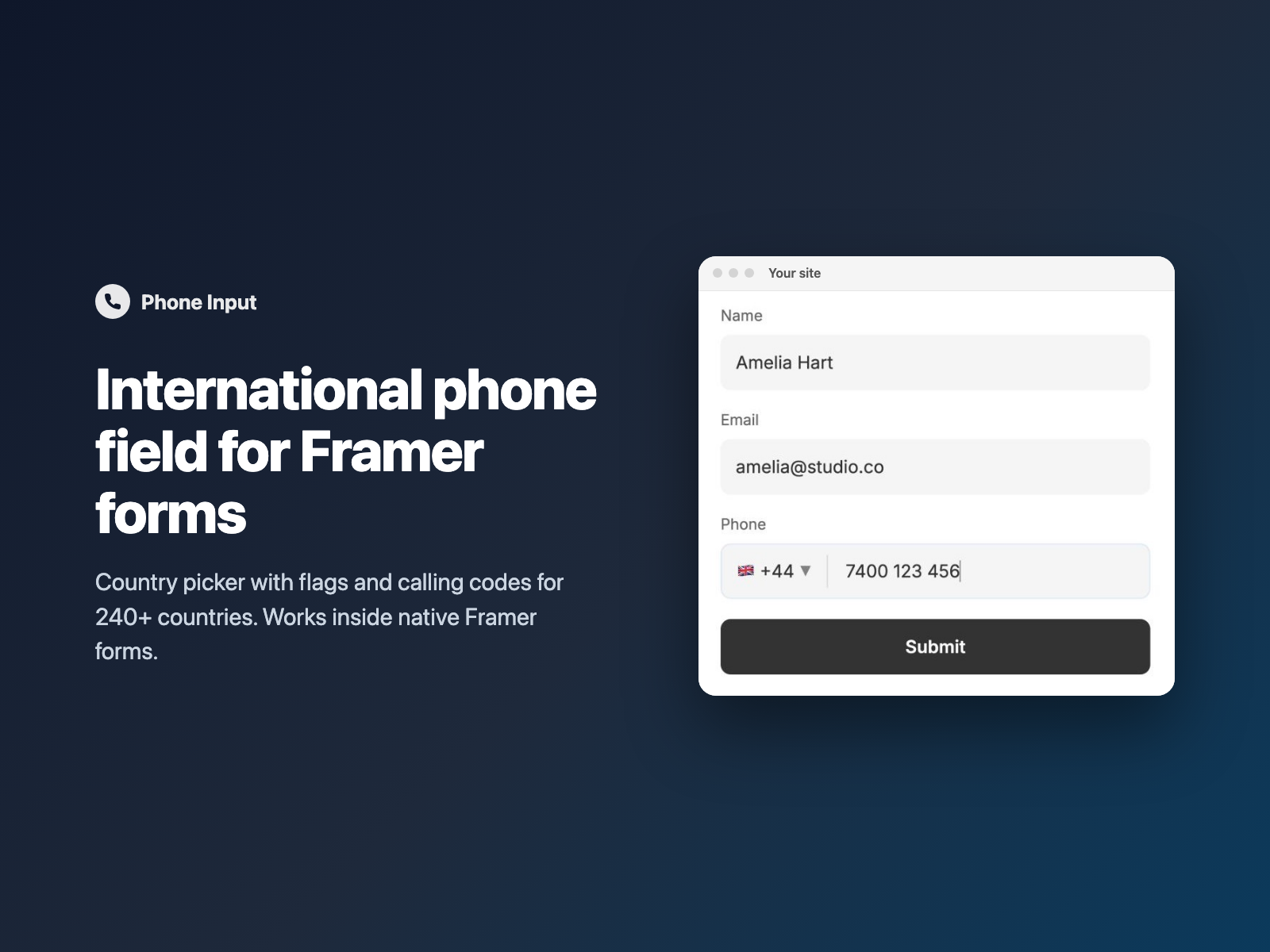
Contact forms, quote requests and booking forms usually ask for a phone number — and on a native Framer form that means a plain text field. Some visitors add a country code, some don't, and every number arrives in a different format.
Phone Input adds an international phone field to your native Framer form: a country picker with flags and calling codes next to the number, and one clean international number in the submission.
Why phone numbers from a plain text field are hard to use
A free-text phone field causes the same three problems for sales and support teams:
- Missing country codes. Visitors type the number the way they dial it at home, so the calling code your team needs for an international callback or message is often left out.
- Mixed formats. Spaces, dashes, brackets and leading zeros make every lead look different in your spreadsheet or CRM.
- No length check. A plain text field accepts "123" as readily as a real number unless you add your own pattern.
A plain text field vs Phone Input
| A plain text or tel field | Phone Input inside a native Framer form |
|---|---|
| Visitors type the country code themselves, or leave it out. | Visitors pick from 240+ countries with flags and calling codes; the code is added for them. |
| Numbers arrive in whatever format the visitor typed. | Only digits are kept, leading zeros are dropped, and one value such as +44 7400 123 456 is sent. |
| Any text passes unless you write your own validation. | Required on or off, plus a minimum number of digits with your own error text. |
How Phone Input builds one international number
Phone Input is a code component written into your Framer project:
- Country picker — 240+ countries with emoji flags and calling codes, sorted by name, with a Suggested group at the top (
US, GB, CA, AUby default). - Default or detected country — set a default with a two-letter code such as
GBorVN, or turn on Detect country to use the visitor's browser language (en-GBselects the United Kingdom). Detection makes no network request. - Clean number entry — a
telinput, so phones show the phone keypad. Non-digits are removed, leading zeros are dropped, up to 15 digits are kept, and the number is shown in readable groups such as7400 123 456. - One submitted value — the form receives
+, the calling code and the number under your field name (Phoneby default), for example+44 7400 123 456. The value is empty when nothing was typed. - Validation — Required, and Min digits (4 to 15, default 6) with your own error text: a number that is too short blocks the submit.
Phone Input checks the digit count, not each country's numbering plan. It also supports a right-to-left layout, and it loads no external scripts and makes no network requests on your site.
Add an international phone field in three steps
- Select your native Form on the Framer canvas, open Phone Input (or pick it inside FramerSend Fields), and sign in with your FramerSend account.
- Click Insert phone field. It is added above the submit button at full width.
- In the right panel, set the field name, default country and suggested countries, turn on Required or adjust Min digits, style the font, colors, radius and padding, and publish.
Combine Phone Input with Conditional Fields, Country Select and your CRM
- Phone only when needed: with Conditional Fields, show the phone field only when Preferred contact equals Phone, and make it required only while it is shown.
- A separate country field: if you also need the visitor's country on its own, add Country Select, which sends the country name or its two-letter ISO code.
- Complete contact details: pair it with Name Fields for first and last name and Work Email for B2B leads.
Because the number arrives as one international value, it maps straight into a phone column in HubSpot, Airtable, Google Sheets or your email notification.
What we tested
We inserted Phone Input into a native Framer form, published the site and submitted it: the submission arrived with "Phone": "+1 7400 123 456". In a later real Framer test on a published site, a second phone field was inserted above the submit button with its own unique field name (Phone 2) and submitted correctly.
Install Phone Input from the Framer Marketplace or use it inside FramerSend Fields along with all 78 Framer form fields and 110+ connectors — 14-day free trial with no card, then from $5/month.
Frequently asked questions
How do I add a phone number field with a country code to a Framer form?
Select your native Framer form, open Phone Input and click Insert phone field. Visitors pick their country from a list of 240+ countries with flags and calling codes, then type their number.
What does my form receive?
One international number with the country calling code included, for example +44 7400 123 456, under the field name you choose (Phone by default).
Can it pick the visitor's country automatically?
Yes. With Detect country on, it uses the visitor's browser language, for example en-GB selects the United Kingdom, without any network request. Otherwise the default country you set is used, and suggested countries appear at the top of the list.
Does it validate phone numbers?
It keeps digits only, drops leading zeros and allows up to 15 digits. You can make it required and set a minimum number of digits (6 by default) with your own error text; a number that is too short blocks the submit. It does not check each country's numbering plan.
Does it work with my form destination?
Yes. The number is part of the native Framer form submission, so it works with email, Google Sheets, webhooks, or FramerSend.
Where do I install Phone Input for Framer?
Install Phone Input from the Framer Marketplace, or open FramerSend Fields (78 fields in one plugin) and select it. Every FramerSend plan includes it from $5/month after a 14-day free trial with no card.
Connect Framer to 100+ CRMs in 60 seconds
14-day free trial, no card needed. Copy your Submit URL and paste straight into Framer.
Related Articles
How to Fill a Framer Form Dropdown from a CMS Collection
Build a dropdown, radio list, buttons or checkboxes in a native Framer form from CMS items such as services or locations, and refresh the options when the CMS changes.
How to Validate an IBAN or VAT Number in a Native Framer Form
Check IBAN check digits and EU VAT numbers as visitors type in a native Framer form, block the submit while the value is wrong and send a clean value.
How to Add a QR Code and Barcode Scanner to a Native Framer Form
Let visitors scan a QR code or barcode into a native Framer form field, or scan from a photo, and send the decoded text with the form.