How to Add a Live Price Calculator to a Framer Form (Instant Quotes & Totals)
Build instant price quotes, ROI calculators and order totals inside native Framer forms with {Field} formulas, currency formatting and clean CRM numbers.

Dong Trinh
Lead Architect at FramerSend
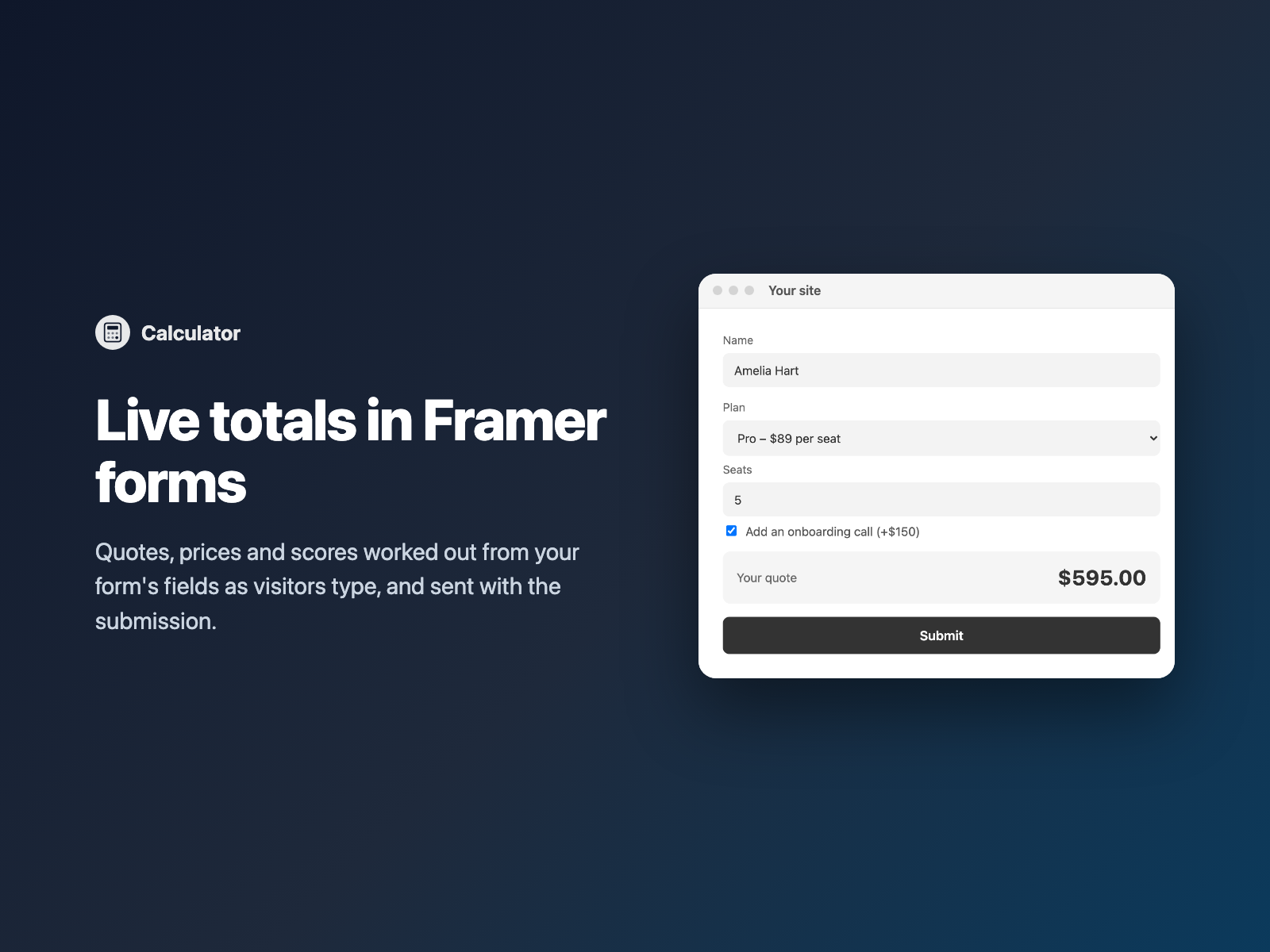
When a prospect lands on an agency pricing page, a SaaS seat estimator or a custom print order form, "Contact us for a quote" adds friction. Interactive quote calculators convert hesitant browsers into qualified leads because visitors see a transparent ballpark figure immediately — and your sales team receives the exact scope and calculated deal value in the submission.
Calculator adds live totals, quotes and scores directly inside your native Framer form. Write a readable formula referencing your field names in curly braces, style the readout to match your brand, and let visitors watch the number update as they type, slide and tick options.
Why live quote calculators outperform static inquiry forms
Turning a static contact form into an instant estimator upgrades lead quality in three ways:
- Self-qualified budgets. Visitors adjust seats, deliverables or add-ons until the estimate fits their budget before clicking Submit.
- Instant deal values in your CRM. Because the calculated number arrives in its own field (such as
Total: "595.00"), HubSpot, Pipedrive, Salesforce and Slack alerts show deal size immediately. - Zero third-party calculator embeds. Your calculator lives inside your native Framer layout with zero slow iframes, zero watermarked widgets and zero per-view embed fees.
Write {Field} formulas without JavaScript or eval()
Reference any field inside the same <form> by wrapping its Name in curly braces. Calculator includes a safe built-in expression parser (never eval()) supporting arithmetic, comparisons, conditionals and math helpers:
{Quantity} * 25
{Seats} * {Plan} + ({Onboarding} == "yes" ? 150 : 0)
max(500, {Pages} * 180 + {CMSSetup})
round({MonthlyLeads} * {CloseRate} * {AvgDeal} / 100, 0)| Capability | Supported syntax |
|---|---|
| Arithmetic & grouping | +, -, *, /, % and nested parentheses (...) |
| Conditional tiers & logic | Comparisons (==, !=, <, <=, >, >=), and, or, not, and ternary condition ? then : else |
| Built-in math functions | min(a, b), max(a, b), round(n, decimals), ceil(n), floor(n) and abs(n) |
| Smart multi-input reading | Reads numbers, currency strings ($1,250.50), select/radio option values, and automatically sums ticked checkbox groups |
Add a live calculator in three steps
- Select your Form on the Framer canvas, open FramerSend Fields, pick Calculator, and click Insert calculator (it drops cleanly right above your Submit button).
- In the right-hand properties panel, set the Label (e.g.
Your quote), Field name (e.g.Total), and paste your Formula using your form's field names in{Braces}. - Choose Currency, Number or Percent formatting, pick your currency code and locale (
en-US$1,250.00orde-DE1.250,00 €), customize fonts and colors, and publish.
Currency locales, display formatting and clean CRM columns
A common pitfall with DIY calculators is either submitting formatted currency symbols that break spreadsheet math, or submitting duplicate inputs. Calculator separates presentation from payload:
- Accessible live readout: visitors see a styled
<output>element formatted viaIntl.NumberFormatwith your chosen currency, decimals, thousands separator, custom prefix/suffix, and row or stacked layout (showing–until required inputs are filled). - Clean numeric submission: a single hidden
<input>submits the plain number under your chosen field name (e.g."Total": "595.00"), ready for Google SheetsSUM()columns, CRM deal amounts, or Coupon Code discounts. - Chained calculators: each Calculator dispatches change events when its value updates, so you can chain
{Subtotal},{Tax}({Subtotal} * 0.08) and{GrandTotal}({Subtotal} + {Tax}) inside the same form.
Common Framer calculator setups
- Agency & studio scope estimators: Pair Range Slider (
{Pages}) + Button Choice ({Timeline}) + checkbox add-ons → show an instant project quote and route 5-figure leads straight to Slack and Notion. - SaaS pricing & ROI calculators: Let prospects slide
{Seats}or{MonthlyOrders}, toggle annual discounts ({Billing} == "annual" ? 0.8 : 1), and require a Work Email to email them a breakdown. - Event & workshop registration: Combine Repeater attendee rows (
{Guests count} * 49) with Booking Limits seat caps so group registrations calculate totals automatically.
What we tested
We ran 25 automated Playwright harness checks plus live multi-field Framer submissions: verifying empty placeholder states (– submitting ""), live keystroke updates, radio + multi-checkbox group summation, de-DE Euro formatting via Intl, min/max/round/ceil/floor/abs and ternary expressions, division-by-zero protection, automatic zeroing when inputs are hidden by Conditional Fields, chained calculator updates, and responsive rendering down to 280 px.
Calculator is available inside FramerSend Fields and documented at /fields/calculator. Every plan includes all 74 form fields and 110+ connectors from $5/month after a 14-day free trial.
Frequently asked questions
Can a native Framer form calculate a live price or total as the user types?
Not natively. Framer's built-in inputs collect static text and numbers. FramerSend's Calculator drops into your native Framer form, evaluates a formula like {Seats} * {Plan} in real time as visitors interact, displays the formatted quote, and submits the calculated number with the form.
Does the Calculator use eval() or external scripts?
No. Formulas are parsed by a self-contained tokenizer and recursive-descent parser built into the component. It never calls eval() or new Function(), loads zero external scripts, and complies with strict Content Security Policies.
Which form inputs can a Calculator formula read?
It reads native text and number inputs (even formatted values like $1,250.50), select dropdowns, radio buttons, ticked checkbox groups (summing checked values), and FramerSend fields such as Range Slider, Number Stepper, Star Rating and Repeater counts.
What happens if a field in my formula is hidden by Conditional Fields?
Fields hidden by Conditional Fields are automatically treated as empty/zero in the formula, and their value comes right back if the visitor reveals that option again.
How is the calculated total formatted in Google Sheets or my CRM?
On screen, visitors see your chosen currency, locale or percentage format (such as $595.00 or 1.250,00 €). Under the hood, a single hidden input submits the clean numeric value (for example Total: 595.00) so spreadsheet formulas and CRM deal-value fields work immediately.
Where do I get the Framer Form Calculator?
Open FramerSend Fields on the Framer Marketplace, pick Calculator, and click Insert calculator. Every FramerSend plan includes all 74 form fields and 110+ connectors, starting at $5/month after a 14-day free trial with no card.
Connect Framer to 100+ CRMs in 60 seconds
14-day free trial, no card needed. Copy your Submit URL and paste straight into Framer.
Related Articles
How to Connect Framer Forms to Any CRM in 2026 (No Code & No Zapier)
A complete step-by-step tutorial on routing native Framer form submissions directly into Klaviyo, HubSpot, Mailchimp, or Salesforce in under 60 seconds.
Framer Form Not Sending? 9 Fixes for Submissions That Never Arrive
Framer form not sending or submissions not arriving? Work through 9 fixes: publishing, Send To settings, validation, spam filters, webhooks and field names.
How to Show Personalized Quiz Results and Outcome Cards in Native Framer Forms
Turn Quiz Score totals, Calculator quotes and dropdown answers into tailored result cards with their own badge, headline and CTA — inside native Framer forms.